
01 / start here
Three steps, then apply.
FolderForge only changes folders you choose. Nothing is uploaded and there is no account.
- 1Add folders
Drag folders in, choose them in the picker, paste a path, or import the current Finder selection.
- 2Build a style
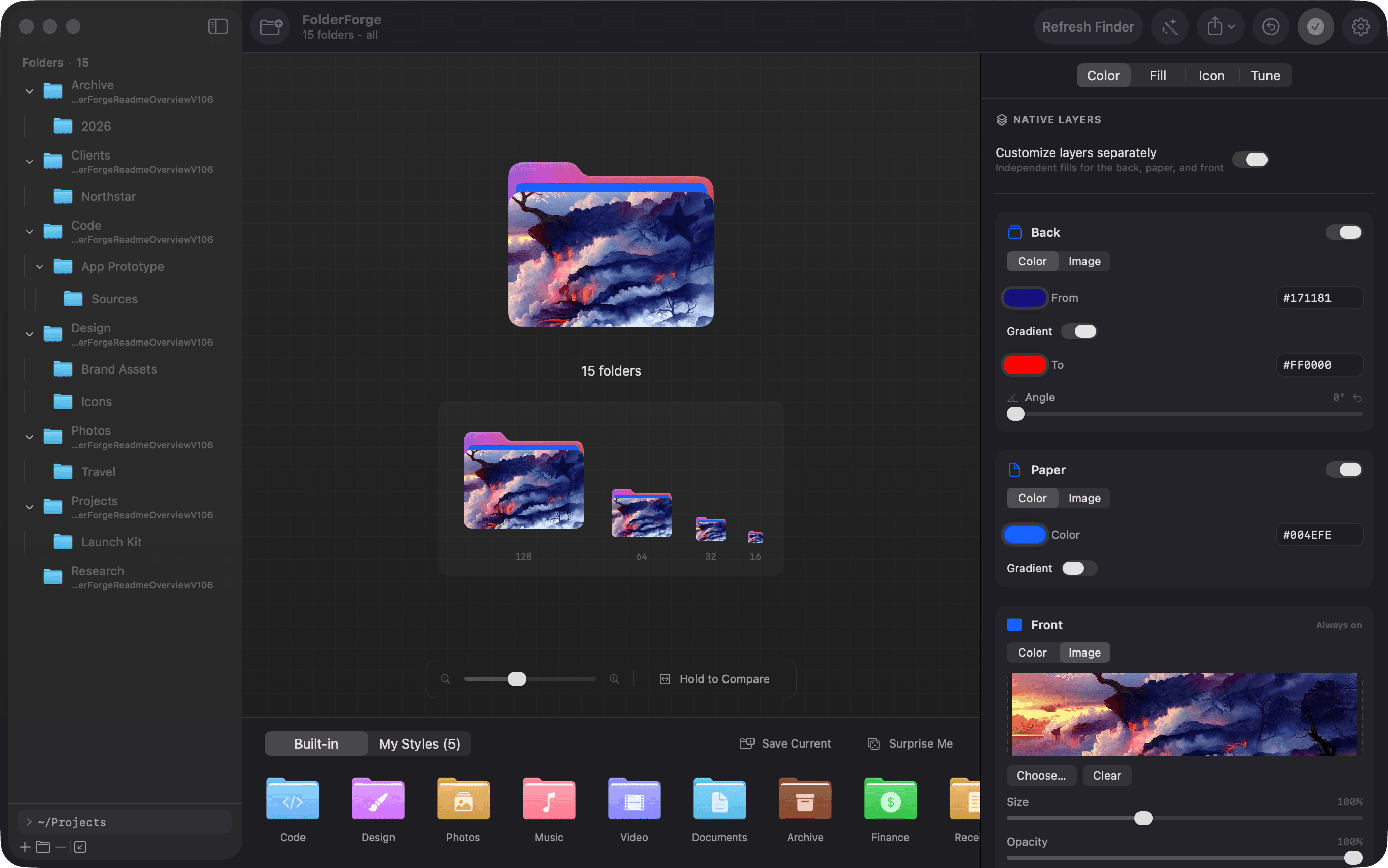
Choose a folder shape, color or fill, then add an optional symbol, emoji, text label, or app icon.
- 3Check and apply
Preview the result at Finder sizes, select the folders you want, and press Apply.
02 / add a folder tree
Treat a folder tree like a workspace.
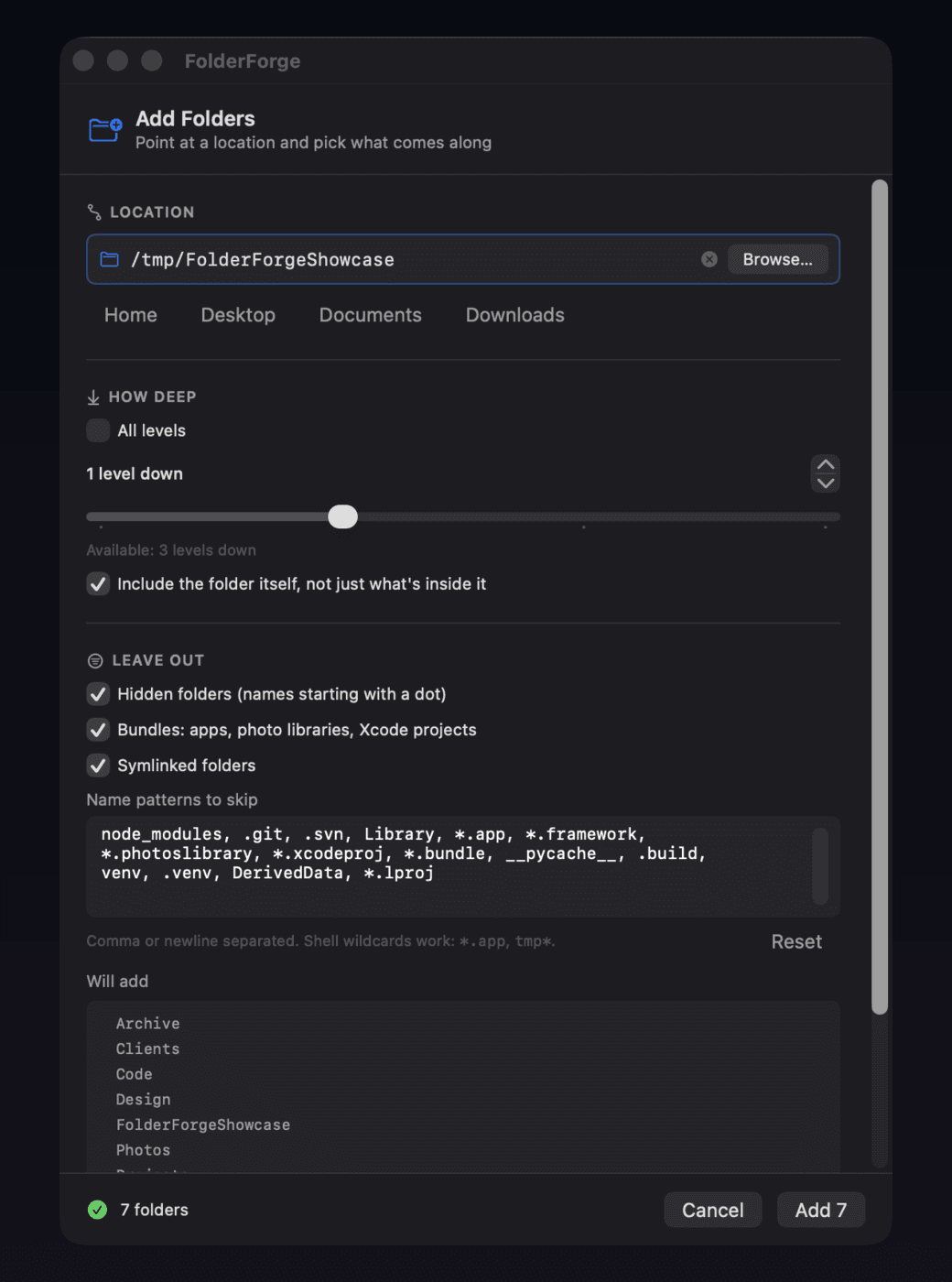
Add one folder, its immediate children, or a deeper tree. FolderForge shows the exact scope before anything enters the sidebar.
Start from any root
Type or paste a path, browse in Finder, or use shortcuts for Home, Desktop, Documents, Downloads, and Developer.
Control what comes along
Add only the selected folder, scan a fixed number of levels, or choose all levels. Including the root itself is optional.
Leave noisy folders out
Skip hidden folders, bundles, symlinks, and shell-glob patterns such as node_modules, *.app, or tmp*.
See the tree first
The expandable preview lists what will be added, how many folders were skipped, and whether the 2,000-folder safety cap was reached.
03 / customize
One editor, four clear parts.
Start simple. A plain color is enough; every other control is optional.
Folder color
Use a solid tint, gradient, tone controls, or separate colors for the native back, paper, and front layers.
Artwork
Use PNG, JPG, SVG, or ICNS artwork. Fit keeps the whole image visible; Fill covers the folder face.
Label
Add an SF Symbol, emoji, text, or an application icon. Adjust placement, opacity, finish, and shadow.
Finish
Fine-tune saturation, brightness, and contrast. ICNS imports also support hue adjustments.
native layers
Style the folder as pieces.
Turn on separate layers when you want independent artwork or color on the back flap, paper, and front face. Leave it off for a faster single-color workflow.
04 / smart style
Rules for a folder tree.
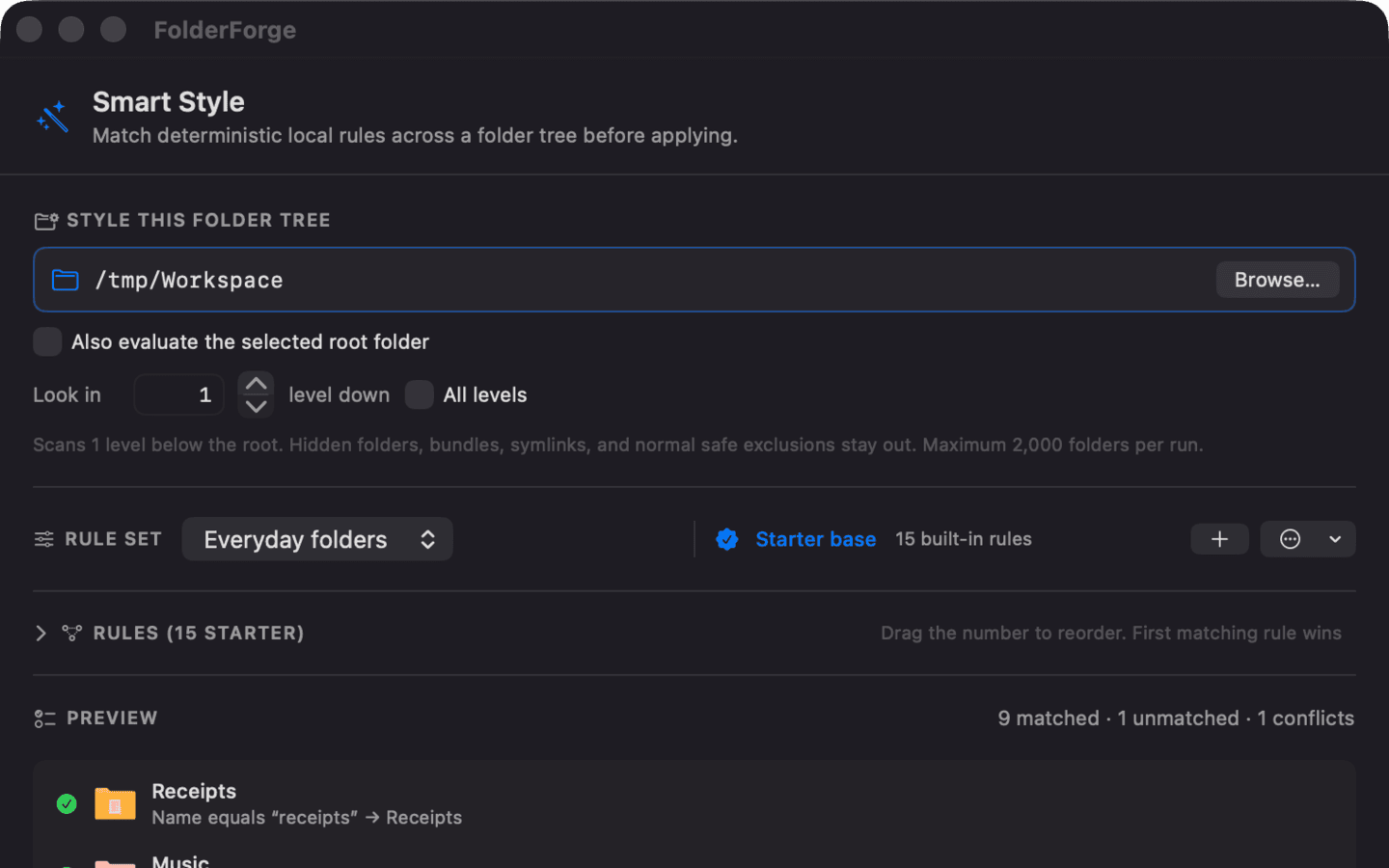
Smart Style scans a root you choose, explains every match, and waits for confirmation before changing anything.
Name, relative path, marker file, or majority file type.
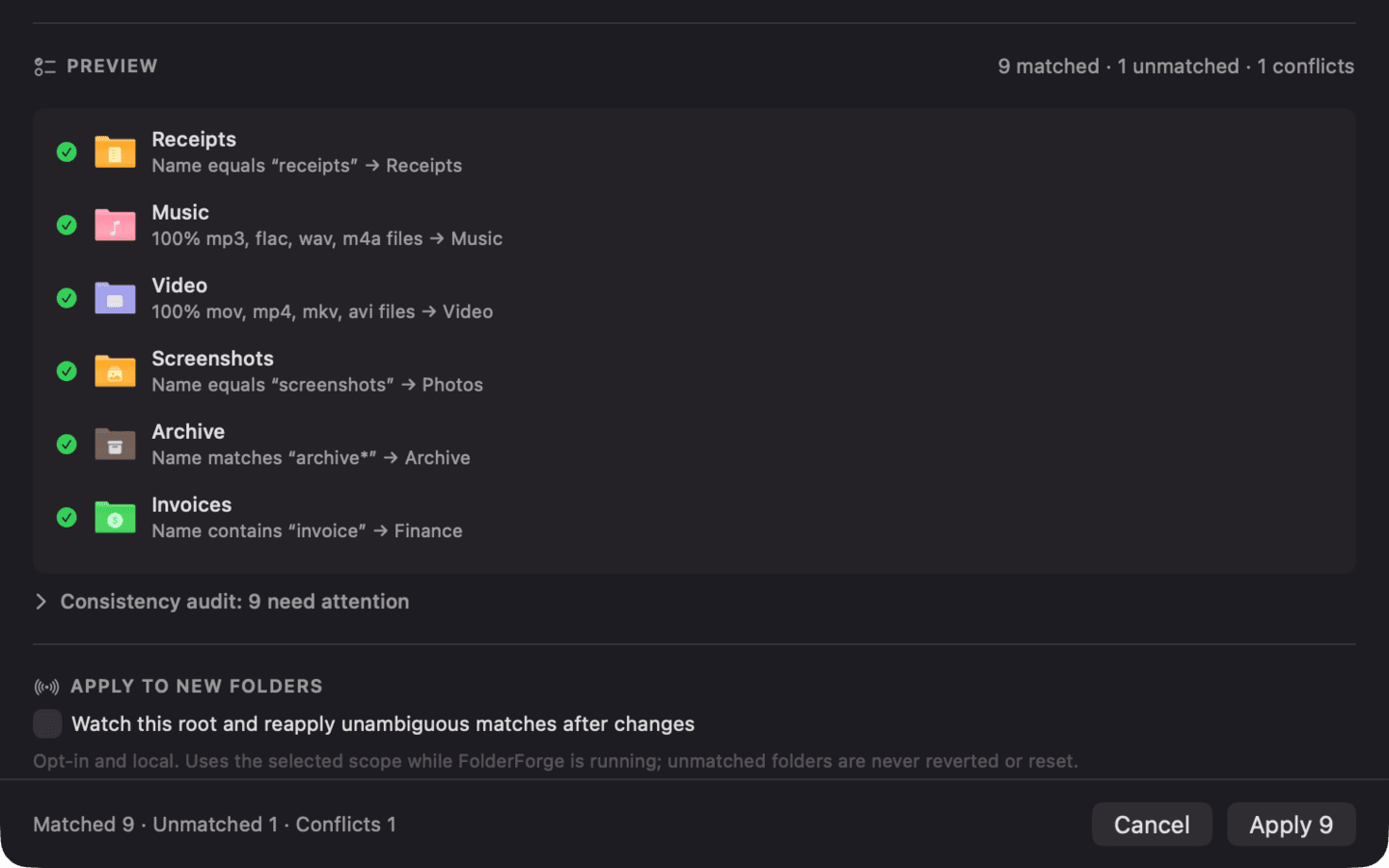
See matches, unmatched folders, and conflicts before applying.
Only matched folders change. Unmatched folders are left alone.
.git, package.json, or Package.swift.rule sets
Begin with useful defaults.
The starter set recognizes common project markers, media-heavy folders, documents, receipts, invoices, payroll, archives, and more. Create, rename, duplicate, import, or export your own rule sets.
precedence
Order makes the result predictable.
Your custom rules run ahead of the optional starter base. Within each set, drag rules into order: the first matching rule wins.
conflicts
Resolve exceptions without rewriting everything.
A conflict means more than one rule matched. FolderForge shows the chosen style and alternatives, then lets you create a path-specific override for that folder.
exclusions
Keep a rule away from selected subtrees.
Each rule can exclude paths or patterns. Selecting a folder excludes that whole subtree, while glob syntax handles broader exceptions.
preview intelligence
The preview is also an audit.
It explains why each folder matched and surfaces useful structure before you apply.
- Matched
- Shows the winning rule, its reason, and the style that will be used.
- Unmatched
- Stays unchanged. Smart Style never assigns a fallback silently.
- Repeated structures
- Finds folder names repeated in at least three places and can turn one into a reusable name rule.
- Consistency audit
- Flags folders whose current FolderForge appearance differs from the style their rule now expects.
- Missing styles
- Rules pointing to a deleted custom preset are called out and those folders are left unchanged.
- Safety limit
- Scans stop at 2,000 folders. Narrow the root, depth, or exclusions before applying a larger tree.
05 / presets
Save once. Reuse or share.
Keep frequently used designs under My Styles, or move them between Macs as plain files.
design.folderstyleA complete visual recipe
Colors, settings, and imported artwork are stored together. Export it, commit it to dotfiles, and import it elsewhere.
workspace.folderrulesAn ordered rule set
Exports the active Smart Style rules. Custom-style rules expect the matching style to be imported too.
06 / restore safely
Experiment without losing the original.
Before replacing an icon, FolderForge records what was there so it can put it back.
Undo last batch
Reverse the most recent apply operation during the current session.
Restore selected
Restore only the folders currently selected in the sidebar.
Restore all
With nothing selected, restore every tracked folder in the list to its original icon.
FolderForge-created icons are reproducible. A pre-existing custom icon is backed up before it is replaced or removed.
07 / notes & limits
Useful details.
A few boundaries are worth knowing before using FolderForge across several Macs or large trees.
- Can I use an iCloud Drive folder?
- Yes, if it is downloaded, writable, and you grant access. The custom Finder icon may not sync or appear consistently on other devices.
- What happens after a rename or move?
- Rules evaluate the folder’s current state. Name and content rules keep working if they still match inside the watched root; relative-path rules can change after a move.
- Does FolderForge modify my files?
- No. It changes the folder’s Finder icon and keeps local records needed for presets, backups, and restore.
- Does it need the internet?
- No. Editing, rendering, applying, rules, and restore all work locally.
- How deep can Smart Style scan?
- Choose a depth or all levels. Normal build and system folders stay excluded, and each run is capped at 2,000 folders.
install
Choose the same app,
from either source.
The App Store build uses Apple’s sandbox. The notarized DMG offers the same editing features with the direct-download permission model.